Show and Hide Objects in the Dashboard
Starting with Tableau 2019.1, you can use the ZoneVisibilityType enum and setZoneVisibilityAsync method to control whether objects in a dashboard are visible or hidden. You can use this feature to create tooltip-like popup dialog boxes, or to create animated slide-show effects by toggling the visibility of the objects in the dashboard.
Requirements for show and hide
- Tableau 2019.1 or later (Tableau Desktop, Tableau Server, Tableau Cloud)
- Tableau Extensions API library:
tableau-extensions-1.1.0.jsor later - The object in the dashboard you want to show and hide must be floating (not tiled)
Find the objects and object ids in the dashboard
A dashboard contains a group of objects. These objects are worksheets, web pages, UI components like text, vertical or horizontal layout containers, or blank zones for spacing. To be able to show or hide an object in the dashboard, you need to have information to identify the object. Starting with the tableau-extensions-1.1.0.js library, objects in the dashboard have properties for name, id, and isVisible.
A dashboard object has another property called isfloating. If the dashboard zone (or object) that contains the extension is not floating, attempting to change the visibility of the object by calling setZoneVisibilityAsync on the the object will fail and cause an error.
This might be obvious, but you first need to place the items you want to show or hide in the dashboard. One of these items could be the extension you are adding. If you want to hide the extension, so that it is not visible while it's running, you first need to add it to the dashboard.
For example, a worksheet in a dashboard fits inside a layout zone. To be able to show or hide a worksheet in a dashboard, you first need to find to find the id of the object (or zone) that contains the worksheet.
The following code example iterates through the objects in the dashboard and prints out information to the console.
 tableau.extensions.dashboardContent.dashboard.objects.forEach(function(object){
          console.log(object.name + ":" + object.type + ":" + object.id + ":" + object.isVisible);
        });
Create a map of the zone and its show or hide state
If you know the name of the zone you want to hide, you can find the zone object and from that set the zone's ZoneVisibilityType properties. You can find and change the names of the zones in the dashboard using the Layout pane in Tableau, under Item Hierarchy. You want to make sure that the zones you want to show and hide are floating.
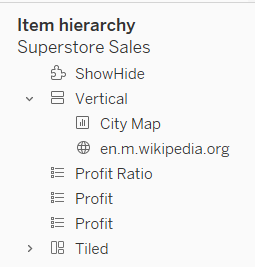
The following code example iterates though the objects in the dashboard to locate two named objects. The setZoneVisibilityAsync method that we use to show or hide a zone takes a zoneVisibilityMap as a parameter. This is a map of the zone (object.id) and a ZoneVisibilityType property, which can be set to show or hide(tableau.ZoneVisibilityType.Hide).
In this example, the zones Wiki and ShowHide have their properties set to hide.
ShowHide is the zone that contains the dashboard extension. The example creates two zoneVisibilityMap objects: extensionVisibilityObject and wikiVisibilityObject. The Wiki zone is also added to the extensionVisibilityObject, where it can be passed to the setZoneVisibilityAsync method when the dashboard extension is first hidden. You can toggle the visibility of multiple zones in a zoneVisibilityMap.
      let wikiZone = ["Wiki"];
      let extensionName = ["ShowHide"];
      let extensionVisibilityObject = {};
      let wikiVisibilityObject = {};

      tableau.extensions.dashboardContent.dashboard.objects.forEach(function(object){
        if(extensionName.includes(object.name)){
          extensionVisibilityObject[object.id] = tableau.ZoneVisibilityType.Hide;
        }else if(wikiZone.includes(object.name)){
          wikiVisibilityObject[object.id] = tableau.ZoneVisibilityType.Hide;
          extensionVisibilityObject[object.id] = tableau.ZoneVisibilityType.Hide;
        }
      });
Set the visibility of the zone in the dashboard
After you have built the map of zone id and the zone's show or hide state, you can call the setZoneVisibilityAsync method and pass it the zone visibility map you created.
The following code example, hides the zone that contains the dashboard extension (ShowHide) and the zone (Wiki) that is used to contain the wiki page and the City Map worksheet, and then prints a message to the console.
      tableau.extensions.dashboardContent.dashboard.setZoneVisibilityAsync(extensionVisibilityObject).then(() => {
        console.log("done");
      })
Troubleshooting and debugging show and hide
So you have hidden your extension, great! So how do you access the shortcut menu so that you can reload the extension while you are developing and testing your extension? It might not be obvious, but you can access the shortcut menu in the Layout pane in the dashboard, under Item Hierarchy. If you right click the extension, you have access to the shortcut menu.
If you want to use the Debug Option, Pause Before Loading, you should make sure the extension is visible. If the extension is hidden, you won't be able to click in the extension zone to continue loading the extension.
Complete listing of a show and hide example
The following code shows how an extension can be used to create a tool-tip like dialog box, by showing and hiding zones in a dashboard. This example uses the Superstore sample as a starting point. The dashboard has actions to call the wikipedia page for the state selected and an action to filter the City Map based on the state selected. This example assumes that there is a zone called Wiki that contains the City Map worksheet and a web page (wikipedia.org). The example also hides the extension itself (ShowHide) and then sets an event listener on a MarkSelectionChanged event in the State Map worksheet. An event occurs when a user clicks a state in the map. If a single state is selected, the event handler method sets the zone visibility and calls setZoneVisibilityAsync to show the zone with the city map and wikipedia page for the state.
    tableau.extensions.initializeAsync().then(function() {
      tableau.extensions.dashboardContent.dashboard.objects.forEach(function(object){
          console.log(object.name + ":" + object.type + ":" + object.id + ":" + object.isVisible);
        });

      let wikiZone = ["Wiki"];
      let extensionName = ["ShoWHide"];
      let extensionVisibilityObject = {};
      let wikiVisibilityObject = {};

      tableau.extensions.dashboardContent.dashboard.objects.forEach(function(object){
        if(extensionName.includes(object.name)){
          extensionVisibilityObject[object.id] = tableau.ZoneVisibilityType.Hide;
        }else if(wikiZone.includes(object.name)){
          wikiVisibilityObject[object.id] = tableau.ZoneVisibilityType.Hide;
          extensionVisibilityObject[object.id] = tableau.ZoneVisibilityType.Hide;
        }
      });

      tableau.extensions.dashboardContent.dashboard.setZoneVisibilityAsync(extensionVisibilityObject).then(() => {
        console.log("done");
      }).then(()=>{
        worksheet = tableau.extensions.dashboardContent.dashboard.worksheets.find(ws => ws.name === "State Map");
        worksheet.addEventListener(tableau.TableauEventType.MarkSelectionChanged, selection)
      })

      function selection(data) {
        data.getMarksAsync().then(marks => {
            if (marks.data[0].data.length === 1) {
              toggleWikiVisibility(tableau.ZoneVisibilityType.Show);
            } else {
              toggleWikiVisibility(tableau.ZoneVisibilityType.Hide);
            }
        })
    }

    function toggleWikiVisibility(visibility) {
      for(let key in wikiVisibilityObject) {
        wikiVisibilityObject[key] = visibility;
      }
      tableau.extensions.dashboardContent.dashboard.setZoneVisibilityAsync(wikiVisibilityObject).then(() => {
        console.log("done");
      });
    }

    });